Help
Here are step-by-step instructions on using Saffronville from the start:
About Dishes
Create a new Dish
Schedule your meals
Use the Shopping List
About Dishes
Create a new Dish
Schedule your meals
Use the Shopping List
About Dishes
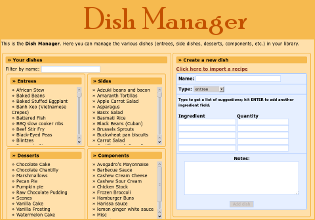
To use Saffronville, you need dishes. Unlike many meal planners, Saffronville was not made to be a recipe file first and foremost; you can enter your dishes in a relatively informal manner. The more you stick to standard ingredient names, quantities, and units, the better the Shopping List can figure out how many onions you need total across all your meals... but a lot of our meals still say "a little," "some," or "a crapload."
Dishes can be assigned to one of four categories:
- Entree — main dishes; also used for one-dish dinners
- Side dish — Dishes you usually serve with an entree
- Dessert — Sweet treats
- Components — Things like sauces or dressings that you don't serve on their own, but instead add into other dishes
Create a new Dish
- Click on the Dishes tab.
- Look for the box on the right that says "Create a new dish."
- Enter a Name for the dish in the Name box.
- Enter each ingredient and the quantity (along with units, such as oz. or tsp.) in the appropriate boxes. More than five ingredients? No worries... new boxes will add themselves automagically as you go.
- Shortcut: if you're entering a recipe you've already got typed on your computer, click on "Click here to import a recipe" and you can copy and paste the ingredients list for automatic parsing. It's not perfect, but it helps!
- The Notes field can be used for instructions, the URL that the recipe came from, common substitutions, or anything else you want to keep with this dish.
- Click Add Dish to add the dish! The cursor will change and then you should see a green "Dish Added" box at the bottom.
Schedule your meals
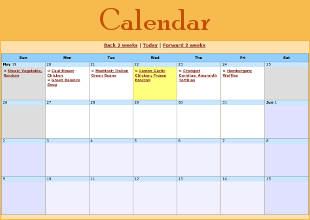
- Go to the Calendar tab.
- Click on a day to create a meal that day.
- Add dishes to the meal, either by typing the name in the box or by choosing from the dropdown list.
- Want to move a meal? Click on it, and change the date.
- You can also add temporary ingredients at this stage. These are things that aren't saved in the Dish, but you want this time. For example, enter your pizza crust and sauce and cheese in your Dish, but then add your toppings when you create the meal. Even our eight-year-old gets tired of ham and pineapple every time.
Use the Shopping List
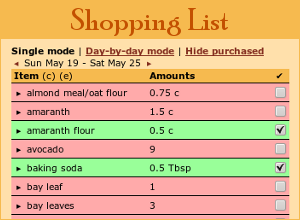
- Go to the Shopping List tab.
- Check off what you already have in your fridge/pantry.
- Tip: just want to make sure you have everything for today or tomorrow? Use "day-by-day mode" to see your ingredients listed by meal.
- Tip: You can change the date range to see meals that are more than a week away using the arrows under the mode selection.
- What's left? Print your list, copy it down on paper, or view the page on your phone or tablet and check things off as you shop.
Next time, on Saffronville...
Now that you've entered your go-to dishes, your routine meal planning is much simpler. Just click on the calendar, add your dishes, check off your list. To the market with you!